I have had some challenges with the Push function on my phone from the beginning I have owned it. As I was under the impression that jailbroken/unlocked iPhones could not have push activated I did not really look further into this problem. Recently I found out how to activate the push function on my iPhone:
I have tried different solutions and eventually I ended up with a paid fix from pushfix.info. Since many solutions give you a shared key the push might not work as should be. Pushfix creates a separate key for your phone which synchronizes with the servers of your network/apple. It costed me $5.99 but I have to admit it was the best money I have spent on any iPhone App. The creators give full online support that helped me in the beginning because I could not get it to work. Now, to activate push on your jailbroken iPhone do the following:
1. Go to www.pushfix.info and pay the $5.99
2. Go to Cydia and add the source http://cydia.pushfix.info/ in Cydia
3. Download and install pushfix
4. Test the connection with the free app Push Test that comes with the package.
5. Now your push notifications should work.
Help!! It doesn't work?!?
Check out the instructions on http://pushfix.info/forum/viewtopic.php?f=5&t=39 or open a support ticket: http://pushfix.info/ticket/
Showing posts with label cydia. Show all posts
Showing posts with label cydia. Show all posts
Friday, February 5, 2010


Wednesday, July 29, 2009
How to install custom IPA files on iPhone
This post will teach you how to install custom IPA files on your phone. Why is this good news? Custom IPA files are cracked apps that will save you money since you will not have to buy this apps. Be advised that you may be interfering with copyrights. If you do not know what you are doing, please stop reading this post.
src="http://pagead2.googlesyndication.com/pagead/show_ads.js">
How to prepare your phone:
1. Make sure that your iPhone is Jailbroken. For more info about this read my other post (click here for Dutch version)
2. Make sure to use iTunes 8.2 or higher
3. Make a backup of your iPhone (in the event that anything goes wrong, you will still have your files, contacts etc.)
4. THIS INSTALLATION IS ON OWN RISK. you might have to do a DFU restore, more info on iclarified
5.This patch has to be installed through Cydia, Icy can not be used.
6. The patch only works in iPhone OS 3.0
7. DO NOT CONTINUE IF YOU DO NOT KNOW WHAT YOU ARE DOING
Step 1
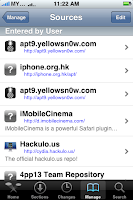
Add the source http://cydia.hackulo.us/ in Cydia. In Cydia click on Manage --> Sources --> Edit --> Add.
Step 2
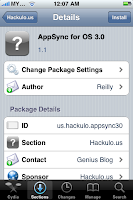
Restart Cydia and press Search, type AppSync. You will find the patch Appsync. Select the program and press install-->confirm.
Step 3
Restart your iPhone (the patch will not work if you don't do this)
Step 4
Download your favorite IPA files (Apps) and install by double clicking on the icon. The App will be loaded in to iTunes after which you are able to synchronize with your iPhone.
Good luck!
src="http://pagead2.googlesyndication.com/pagead/show_ads.js">
src="http://pagead2.googlesyndication.com/pagead/show_ads.js">
How to prepare your phone:
1. Make sure that your iPhone is Jailbroken. For more info about this read my other post (click here for Dutch version)
2. Make sure to use iTunes 8.2 or higher
3. Make a backup of your iPhone (in the event that anything goes wrong, you will still have your files, contacts etc.)
4. THIS INSTALLATION IS ON OWN RISK. you might have to do a DFU restore, more info on iclarified
5.This patch has to be installed through Cydia, Icy can not be used.
6. The patch only works in iPhone OS 3.0
7. DO NOT CONTINUE IF YOU DO NOT KNOW WHAT YOU ARE DOING
Step 1
Add the source http://cydia.hackulo.us/ in Cydia. In Cydia click on Manage --> Sources --> Edit --> Add.

Step 2
Restart Cydia and press Search, type AppSync. You will find the patch Appsync. Select the program and press install-->confirm.

Step 3
Restart your iPhone (the patch will not work if you don't do this)
Step 4
Download your favorite IPA files (Apps) and install by double clicking on the icon. The App will be loaded in to iTunes after which you are able to synchronize with your iPhone.
Good luck!
src="http://pagead2.googlesyndication.com/pagead/show_ads.js">
Saturday, June 20, 2009
How to jailbreak OS 3.0 using redsn0w
Today the unlock software from Dev Team, redsn0w, was released. Redsn0w enables every iPhone 3G owner (not 3GS) to jailbreak the phone.
The installation is actually simple. I downloaded the firmware (iPhone1,2_3.0_7A341_Restore.ipsw) and upgraded my phone from OS 2.2.1 to OS 3.0 through iTunes.
After downloading the iPhone1,2_3.0_7A341_Restore.zip file, rename the file to iPhone1,2_3.0_7A341_Restore.ipsw.
Connect your iPhone to your computer and start iTunes. Select "restore" and then select the firmware that you downloaded on the website mentioned above. Do nothing during the upgrade untill its finished.
When the iPhone is upgraded, start the redsn0w application (see dev team blog for download mirrors). Clearly read the instructions on the screen. First you will be asked to completely switch off the phone while it is still connected to your computer. Switch off the phone by holding in the power button for a couple of seconds and then slide the power off widget in the screen. After clicking next, the phone restarts and you will be asked to hold the power button, then the power and home button and finally only the home button. Then the jailbreak procedure will start, just wait until it completes.
When you see "done" in the screen, the iPhone will complete the jailbreak and your phone is jailbroken.
Note: NOW YOUR IPHONE IS UNLOCKED YOU CAN UNLOCK BY INSTALLING ULTRASN0W .
The installation is actually simple. I downloaded the firmware (iPhone1,2_3.0_7A341_Restore.ipsw) and upgraded my phone from OS 2.2.1 to OS 3.0 through iTunes.
After downloading the iPhone1,2_3.0_7A341_Restore.zip file, rename the file to iPhone1,2_3.0_7A341_Restore.ipsw.
Connect your iPhone to your computer and start iTunes. Select "restore" and then select the firmware that you downloaded on the website mentioned above. Do nothing during the upgrade untill its finished.
When the iPhone is upgraded, start the redsn0w application (see dev team blog for download mirrors). Clearly read the instructions on the screen. First you will be asked to completely switch off the phone while it is still connected to your computer. Switch off the phone by holding in the power button for a couple of seconds and then slide the power off widget in the screen. After clicking next, the phone restarts and you will be asked to hold the power button, then the power and home button and finally only the home button. Then the jailbreak procedure will start, just wait until it completes.
When you see "done" in the screen, the iPhone will complete the jailbreak and your phone is jailbroken.
Note: NOW YOUR IPHONE IS UNLOCKED YOU CAN UNLOCK BY INSTALLING ULTRASN0W .
Tuesday, April 21, 2009
Not to miss 3rd party iPhone apps
In this topic we will discuss the advantages of a jailbroken iPhone:

Cydia
This app source gives you access to MANY apps, unavailable in the App Store but can make a big difference on your iPhone 3G. The app is a must for downloading the other iPhone apps below. Below we will highlight some of the most convenient Apps from Cydia.

Bossprefs
Bossprefs is a swicthboard tool that allows you to individually turn on/off 3G, Edge, Wifi, Bluetooth and your email accounts. This can be a big advantage if you want to save on the, already short, battery life of your phone.
Bossprefs also has a "Spoof" feature which allows you to hide any of the default Apple icons on your springboard (e.g. Youtube, Calendar, Notes, iTunes etc.)
Finally one of the most convenient add-ons for this app is the KB-AutoCorrect plugin (also available on Cydia). This add-on gives you he opportunity to disable the sometimes frustrating Auto Correct feature for writing text messages. For me this was one of the first things I installed on my iPhone, a must for anyone who is bothered by the Autocorrect feature!
 MxTube
MxTube allows any user to download and save any youtube video directly on your iPhone 3G! NICE HUH?!
Snapture
Snapture is an advanced camera app that gives you many more options than the original iPhone Camera app. With Snapture users can customize the photo setting like black and white modus, sepia, zoom function and timer function.
Text+, biteSMS and iRealSMS
These apps are a great replacement and/or addition for your standard SMS app. Text+ gives the iPhone user the ability to forward any text message to either a mail address or phone#.
BiteSMS and iRealSMS are paid, more advanced SMS programs which give the user a landscape sms keyboard mode, sms forwarding, quick reply, sms counter and smileys.
BiteSMS also gives the option to send cheaper SMS messages via the biteSMS network!
 Backgrounder & Insomnia
Backgrounder is a wonderful app that allows users to run any app in background mode. Especially useful for Apps like Skype and Fring. You can let your messaging software run and still be able to use the other apps on your iPhone! This app is a must for any messaging freak! One advice: do run too many apps in background mode because it slows down the performance of your iPhone.
Insomnia gives you the ability to run your wifi connection in standby mode! (of course this decreases the battery life of your phone)
Subscribe to:
Posts (Atom)