I have had some challenges with the Push function on my phone from the beginning I have owned it. As I was under the impression that jailbroken/unlocked iPhones could not have push activated I did not really look further into this problem. Recently I found out how to activate the push function on my iPhone:
I have tried different solutions and eventually I ended up with a paid fix from pushfix.info. Since many solutions give you a shared key the push might not work as should be. Pushfix creates a separate key for your phone which synchronizes with the servers of your network/apple. It costed me $5.99 but I have to admit it was the best money I have spent on any iPhone App. The creators give full online support that helped me in the beginning because I could not get it to work. Now, to activate push on your jailbroken iPhone do the following:
1. Go to www.pushfix.info and pay the $5.99
2. Go to Cydia and add the source http://cydia.pushfix.info/ in Cydia
3. Download and install pushfix
4. Test the connection with the free app Push Test that comes with the package.
5. Now your push notifications should work.
Help!! It doesn't work?!?
Check out the instructions on http://pushfix.info/forum/viewtopic.php?f=5&t=39 or open a support ticket: http://pushfix.info/ticket/
Friday, February 5, 2010


Wednesday, December 2, 2009
Bar & Clubbing guides for iPhone
Guys,
Wordpress bloggers now have the convenient availability to optimize their websites for iPhone using the WP-Touch plugin. no additional programming, no knowledge of HTML, PHP or CSS, just install the plugin in the Wordpress admin section. The Wp-Touch plugin converts any regular Wordpress hosted website to a iPhone friendly version...

I just encountered an amazing website that has helped me do a nice drinking tour in New York: www.venuexperience.com The part that i like about it is that they do not give just reviews of bars but complete city guides with the nicest restaurants, bars and clubs for metropolitans. On top of that...(how else could it be?) customized for use on iPhone! Drink responsibly....:)

Wordpress bloggers now have the convenient availability to optimize their websites for iPhone using the WP-Touch plugin. no additional programming, no knowledge of HTML, PHP or CSS, just install the plugin in the Wordpress admin section. The Wp-Touch plugin converts any regular Wordpress hosted website to a iPhone friendly version...
I just encountered an amazing website that has helped me do a nice drinking tour in New York: www.venuexperience.com The part that i like about it is that they do not give just reviews of bars but complete city guides with the nicest restaurants, bars and clubs for metropolitans. On top of that...(how else could it be?) customized for use on iPhone! Drink responsibly....:)
Wednesday, July 29, 2009
How to install custom IPA files on iPhone
This post will teach you how to install custom IPA files on your phone. Why is this good news? Custom IPA files are cracked apps that will save you money since you will not have to buy this apps. Be advised that you may be interfering with copyrights. If you do not know what you are doing, please stop reading this post.
src="http://pagead2.googlesyndication.com/pagead/show_ads.js">
How to prepare your phone:
1. Make sure that your iPhone is Jailbroken. For more info about this read my other post (click here for Dutch version)
2. Make sure to use iTunes 8.2 or higher
3. Make a backup of your iPhone (in the event that anything goes wrong, you will still have your files, contacts etc.)
4. THIS INSTALLATION IS ON OWN RISK. you might have to do a DFU restore, more info on iclarified
5.This patch has to be installed through Cydia, Icy can not be used.
6. The patch only works in iPhone OS 3.0
7. DO NOT CONTINUE IF YOU DO NOT KNOW WHAT YOU ARE DOING
Step 1
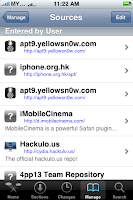
Add the source http://cydia.hackulo.us/ in Cydia. In Cydia click on Manage --> Sources --> Edit --> Add.
Step 2
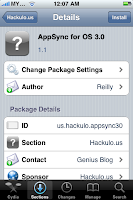
Restart Cydia and press Search, type AppSync. You will find the patch Appsync. Select the program and press install-->confirm.
Step 3
Restart your iPhone (the patch will not work if you don't do this)
Step 4
Download your favorite IPA files (Apps) and install by double clicking on the icon. The App will be loaded in to iTunes after which you are able to synchronize with your iPhone.
Good luck!
src="http://pagead2.googlesyndication.com/pagead/show_ads.js">
src="http://pagead2.googlesyndication.com/pagead/show_ads.js">
How to prepare your phone:
1. Make sure that your iPhone is Jailbroken. For more info about this read my other post (click here for Dutch version)
2. Make sure to use iTunes 8.2 or higher
3. Make a backup of your iPhone (in the event that anything goes wrong, you will still have your files, contacts etc.)
4. THIS INSTALLATION IS ON OWN RISK. you might have to do a DFU restore, more info on iclarified
5.This patch has to be installed through Cydia, Icy can not be used.
6. The patch only works in iPhone OS 3.0
7. DO NOT CONTINUE IF YOU DO NOT KNOW WHAT YOU ARE DOING
Step 1
Add the source http://cydia.hackulo.us/ in Cydia. In Cydia click on Manage --> Sources --> Edit --> Add.

Step 2
Restart Cydia and press Search, type AppSync. You will find the patch Appsync. Select the program and press install-->confirm.

Step 3
Restart your iPhone (the patch will not work if you don't do this)
Step 4
Download your favorite IPA files (Apps) and install by double clicking on the icon. The App will be loaded in to iTunes after which you are able to synchronize with your iPhone.
Good luck!
src="http://pagead2.googlesyndication.com/pagead/show_ads.js">
Sunday, July 19, 2009
Art on your iPhone!!
Love Art, Art in your pocket
A very interesting app for your iPhone is Love Art. I observed the app in the App store today and downloaded it immediately. Love art enables the iPhone user to see artworks in The National Gallery in London. A nice feature for art lovers: Van Gogh, da Vinci and Rembrandt all in your pocket instead of on your wall!
How does it work?
By installing love art on your phone you can watch artworks that are shown in the famous National Gallery in London. The National Gallery has one of the biggest art collections in Europe. The National Gallery has now developed the iPhone application that shows pictures of the artworks, that are described with audio tours. The app has information about art from different artists among who: Leonardo da Vinci, Vincent van Gogh, Sandro Boticelli, Rembrandt van Rijn, Pierre-Auguste Renoir and Johannes Vermeer.

How to install?
The Love Art app is available for free in the iTunes app store. Be aware: the app is approximately 200 MB's so you might want to download Love Art with your PC instead of on your phone to save you some data on your carrier's dataplan.
Links
This page in Dutch
iPhone Links
Fifa 10 voor iPhone
A very interesting app for your iPhone is Love Art. I observed the app in the App store today and downloaded it immediately. Love art enables the iPhone user to see artworks in The National Gallery in London. A nice feature for art lovers: Van Gogh, da Vinci and Rembrandt all in your pocket instead of on your wall!
How does it work?
By installing love art on your phone you can watch artworks that are shown in the famous National Gallery in London. The National Gallery has one of the biggest art collections in Europe. The National Gallery has now developed the iPhone application that shows pictures of the artworks, that are described with audio tours. The app has information about art from different artists among who: Leonardo da Vinci, Vincent van Gogh, Sandro Boticelli, Rembrandt van Rijn, Pierre-Auguste Renoir and Johannes Vermeer.

How to install?
The Love Art app is available for free in the iTunes app store. Be aware: the app is approximately 200 MB's so you might want to download Love Art with your PC instead of on your phone to save you some data on your carrier's dataplan.
Links
This page in Dutch
iPhone Links
Fifa 10 voor iPhone
Monday, July 6, 2009
iTunes not synchronizing iPhone Apps

Problem:
When you connect your iPhone with iTunes, the programs are not synchronized
Solutions
When you experience the above problem you should re-authorize your iPhone in iTunes. This is done as follows:
1. Launch iTunes
2. Connect your iPhone
3. Click on Store -> Withdraw Authorization and click OK
4. Choose on Store -> Authorize this computer
5. Enter your iTunes Store username and password and click OK
The problem should be resolved now. If this is not the case you should restore your iPhone to factory defaults and restart the process.
Good luck!
For Dutch instructions, click here
Links
iPhone Startpagina
Saturday, June 20, 2009
How to jailbreak OS 3.0 using redsn0w
Today the unlock software from Dev Team, redsn0w, was released. Redsn0w enables every iPhone 3G owner (not 3GS) to jailbreak the phone.
The installation is actually simple. I downloaded the firmware (iPhone1,2_3.0_7A341_Restore.ipsw) and upgraded my phone from OS 2.2.1 to OS 3.0 through iTunes.
After downloading the iPhone1,2_3.0_7A341_Restore.zip file, rename the file to iPhone1,2_3.0_7A341_Restore.ipsw.
Connect your iPhone to your computer and start iTunes. Select "restore" and then select the firmware that you downloaded on the website mentioned above. Do nothing during the upgrade untill its finished.
When the iPhone is upgraded, start the redsn0w application (see dev team blog for download mirrors). Clearly read the instructions on the screen. First you will be asked to completely switch off the phone while it is still connected to your computer. Switch off the phone by holding in the power button for a couple of seconds and then slide the power off widget in the screen. After clicking next, the phone restarts and you will be asked to hold the power button, then the power and home button and finally only the home button. Then the jailbreak procedure will start, just wait until it completes.
When you see "done" in the screen, the iPhone will complete the jailbreak and your phone is jailbroken.
Note: NOW YOUR IPHONE IS UNLOCKED YOU CAN UNLOCK BY INSTALLING ULTRASN0W .
The installation is actually simple. I downloaded the firmware (iPhone1,2_3.0_7A341_Restore.ipsw) and upgraded my phone from OS 2.2.1 to OS 3.0 through iTunes.
After downloading the iPhone1,2_3.0_7A341_Restore.zip file, rename the file to iPhone1,2_3.0_7A341_Restore.ipsw.
Connect your iPhone to your computer and start iTunes. Select "restore" and then select the firmware that you downloaded on the website mentioned above. Do nothing during the upgrade untill its finished.
When the iPhone is upgraded, start the redsn0w application (see dev team blog for download mirrors). Clearly read the instructions on the screen. First you will be asked to completely switch off the phone while it is still connected to your computer. Switch off the phone by holding in the power button for a couple of seconds and then slide the power off widget in the screen. After clicking next, the phone restarts and you will be asked to hold the power button, then the power and home button and finally only the home button. Then the jailbreak procedure will start, just wait until it completes.
When you see "done" in the screen, the iPhone will complete the jailbreak and your phone is jailbroken.
Note: NOW YOUR IPHONE IS UNLOCKED YOU CAN UNLOCK BY INSTALLING ULTRASN0W .
Thursday, June 4, 2009
Microphone not working
After I experienced the good life with my iPhone, after 2 months of usage all of a sudden the mic stopped working. In the beginning, whenever I had did problem I did a simple reset after which the phone functioned normal again. Though after a while the problem remained and a simple reboot did not resolve the issue anymore. The strange thing was that i was able to make call when I used the headset that comes with the phone.
I tried different things to repair it myself: clean the headphone jack, reboot, reset, and I did a complete re-installation of the software with a DFU (see www.iclarified.com for details).
Finally I decided to bring back to phone to an official Apple store. Unfortunately I live on Aruba, but I was lucky a friend of mine went to Miami the week after. He reported that when Apple heard of the problem, they immediately replaced the phone (maybe the problem was already known with Apple?)
Eitherhow, I own a completely new phone right now, unfortunately with the 2.2.1. software and baseband 2.30 which can not be unlocked by using Yellowsn0w as yet. I have purchased a piggybag Rebel SIM through ebay and I am waiting for it to arrive. By using the Rebel SIM, I should be able to make calls again soon.
Will keep you updated,
Tony
I tried different things to repair it myself: clean the headphone jack, reboot, reset, and I did a complete re-installation of the software with a DFU (see www.iclarified.com for details).
Finally I decided to bring back to phone to an official Apple store. Unfortunately I live on Aruba, but I was lucky a friend of mine went to Miami the week after. He reported that when Apple heard of the problem, they immediately replaced the phone (maybe the problem was already known with Apple?)
Eitherhow, I own a completely new phone right now, unfortunately with the 2.2.1. software and baseband 2.30 which can not be unlocked by using Yellowsn0w as yet. I have purchased a piggybag Rebel SIM through ebay and I am waiting for it to arrive. By using the Rebel SIM, I should be able to make calls again soon.
Will keep you updated,
Tony
Subscribe to:
Posts (Atom)